The Self-Driving Media Server: Jellyfin + Radarr, Sonarr, Prowlarr, Bazarr & Seerr on ZimaOS
Contents

Note
This guide automates downloading and organising media. Use it only for content you are legally entitled to download, such as public-domain films, Creative Commons releases, or copies of media you own, according to the laws of your country. The tools themselves are neutral; how you use them is your responsibility.
The result
Imagine this: you open a web page, search for a film, and press Request. A few minutes later it is in your Jellyfin library with the poster, metadata and subtitles in your language. You did nothing else.
That is what this guide builds, on a single box running ZimaOS.
What you get at the end:
- One-click requests from a clean web page (Seerr). Family members sign in with their Jellyfin account.
- Automatic search and download of movies and series, with size limits, so a 2-hour film never eats 25 GB of disk.
- Instant, zero-copy imports with hardlinks: the file appears in your library without being copied or using extra space.
- Subtitles in your language, fetched automatically for new and existing media, and converted to UTF-8 so non-Latin alphabets display correctly.
- New episodes of series you follow, downloaded when they air.
- Jellyfin refreshes itself after every import. No manual library scans.
- Your existing library imported and tidied, without re-downloading anything.
Real numbers from the build this guide is based on:
| Metric | Value |
|---|---|
| Hardware | A decade-old quad-core office desktop, 16 GB RAM, one SATA SSD |
| CPU load at idle, with all 7 apps running | ~0.1 |
| RAM used by all containers together | ~1 GB |
| Time from import to subtitles available | ~2 minutes |
| Existing library imported | 15 films + 3 series, with no re-downloads |
| Subtitle coverage after the first automatic search | 100% of titles in the primary language |
| Disk reclaimed in the pre-build Docker audit | ~13 GB of unused images |
You do not need powerful hardware. You need the right structure, and that is what most guides skip.
How it works
| App | Role |
|---|---|
| Seerr | The request page. Search, click "Request". |
| Radarr | Manages films: searches, sends to the downloader, imports, renames. |
| Sonarr | The same for TV series, and watches for new episodes. |
| Prowlarr | Manages indexers (search sources) once and syncs them to Radarr and Sonarr. |
| qBittorrent | Does the downloading. |
| Bazarr | Fetches subtitles in the languages you choose. |
| Jellyfin | The media server you actually watch on. |
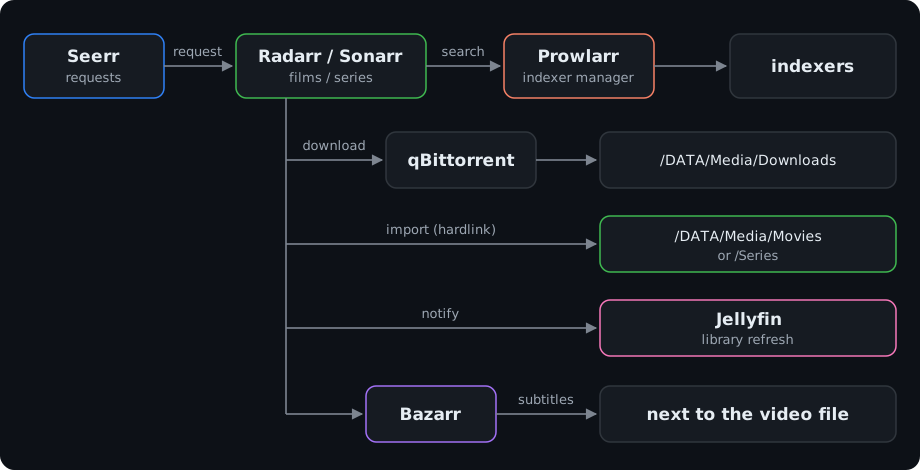
Text version of the diagram
Seerr ──request──► Radarr / Sonarr ──search──► Prowlarr ──► indexers
                        │
                        ├──download──► qBittorrent ──► /DATA/Media/Downloads
                        │
                        ├──import (hardlink)──► /DATA/Media/Movies or /Series
                        │
                        ├──notify──► Jellyfin (library refresh)
                        │
                        └──► Bazarr ──subtitles──► next to the video file
The one idea that makes it all work
Every app that touches files sees the same folder at the same path:
host: /DATA/Media → container: /DATA/Media
When downloads and library live on the same filesystem and every container sees them at the same path, Radarr and Sonarr can hardlink a finished download into the library. The file exists in two places, uses disk space once, the "move" is instant, and the downloader can keep seeding.
If paths differ between containers (/downloads in one, /data/downloads in another), hardlinks silently fall back to copies. You get double disk usage, slow imports, and a pile of "remote path mappings" to maintain. Get this right first, and everything else is configuration.
Before you start
Requirements
- ZimaOS installed and reachable in a browser.
- SSH access to ZimaOS. Enable it in ZimaOS settings, then connect with
ssh <user>@<SERVER_IP>. - Free space on
/DATA. With the limits in this guide, a film is ~2–8 GB and an episode ~0.5–2 GB.
Decide these values once
Every value in < > is yours. Pick them now and use the same values everywhere.
| Variable | Meaning | How to find or choose it |
|---|---|---|
<SERVER_IP> |
LAN IP of your ZimaOS box | ZimaOS dashboard, or ip -4 addr. Make it static with a DHCP reservation. |
<PUID> / <PGID> |
The user and group all apps run as | Usually 1000 / 1000. See below. |
<TZ> |
Time zone | e.g. Europe/Athens, America/New_York |
Choosing PUID/PGID. All apps must run as the same user, or Radarr won't be able to move what qBittorrent downloaded. If you already have media, check its owner:
ls -ln /DATA/Media 2>/dev/null; ls -ln /DATA/Media/* 2>/dev/null | head
If the files show 1000 1000, or the folder is new, use 1000 / 1000. This guide writes 1000; replace it if you chose otherwise.
How apps work on ZimaOS (read this once)
Every App Store app is a Docker Compose project stored at:
/var/lib/casaos/apps/<app-name>/docker-compose.yml
App Store templates often ship with mounts that break hardlinks (separate /movies, /tv, /downloads). For each app the workflow is:
- Install from the App Store with default settings.
- See what the Store created:
sudo cat /var/lib/casaos/apps/<app-name>/docker-compose.yml - In ZimaOS: app icon → Settings / Edit → YAML tab (top right).
- Change only the fields this guide lists (usually
environmentandvolumes). Keepimage,labels,deploy,healthcheck,x-casaosuntouched. - Save.
Replace ZimaOS template variables with explicit values, so you always know what is in effect:
| In the template | Replace with |
|---|---|
PUID: $PUID |
PUID: "1000" |
PGID: $PGID |
PGID: "1000" |
TZ: $TZ |
TZ: <TZ> |
/DATA/AppData/$AppID/config |
/DATA/AppData/<app-name>/config |
Always verify, never trust "Save"
# Mounts
sudo docker inspect -f '{{.Name}}{{range .Mounts}}
   {{.Source}} → {{.Destination}}{{end}}' <container>

# Environment
sudo docker inspect <container> -f '{{range .Config.Env}}{{println .}}{{end}}' | grep -E 'PUID|PGID|UMASK|TZ'
If the container still shows old values, the Save failed silently. Run compose by hand to see the real error:
sudo docker compose -p <app-name> -f /var/lib/casaos/apps/<app-name>/docker-compose.yml up -d --force-recreate
Warning
If you manage ZimaOS remotely through a tunnel or VPN that runs as a container on the same box (Tailscale, Twingate, ZeroTier, cloudflared…), restarting Docker or recreating that container cuts your session. A foreground command dies with it, and the container may stay stopped. Do this from your LAN, or detach the command:
sudo -v && sudo nohup <command> > /tmp/out.log 2>&1 &
Step 1: Folder structure
/DATA/Media/
├── Downloads/
│   ├── incomplete/        ← qBittorrent downloads here
│   └── complete/
│       ├── movies/        ← category "radarr"
│       └── tv/            ← category "tv-sonarr"
├── Movies/                ← film library (Radarr, Jellyfin)
└── Series/                ← series library (Sonarr, Jellyfin)
sudo install -d -o 1000 -g 1000 -m 775 \
  /DATA/Media/Downloads/incomplete \
  /DATA/Media/Downloads/complete/movies \
  /DATA/Media/Downloads/complete/tv \
  /DATA/Media/Movies \
  /DATA/Media/Series

ls -ln /DATA/Media /DATA/Media/Downloads /DATA/Media/Downloads/complete
Everything should be owned by 1000 1000 with drwxrwxr-x.
Tip
Create complete/movies and complete/tv up front. qBittorrent would create them on the first download, but until then Radarr and Sonarr show a health warning that the folder "does not appear to exist inside the container".
Step 2: Prepare Docker (recommended)
Cap container logs
By default Docker keeps container logs forever. Cap them at 3 × 10 MB per container:
sudo mkdir -p /DATA/scripts
sudo cp -a /etc/docker/daemon.json /DATA/scripts/daemon.json.orig 2>/dev/null

sudo tee /etc/docker/daemon.json > /dev/null << 'EOF'
{
  "log-driver": "json-file",
  "log-opts": {
    "max-size": "10m",
    "max-file": "3"
  }
}
EOF

sudo dockerd --validate --config-file /etc/docker/daemon.json
Continue only if it prints configuration OK. If your existing daemon.json already had other settings, merge them in instead of overwriting.
sudo systemctl restart docker && sleep 15 && sudo docker ps --format 'table {{.Names}}\t{{.Status}}'
sudo cp -a /etc/docker/daemon.json /DATA/scripts/daemon.json.logrotate
The limit applies to containers created after the change. Do this before installing the apps and they all inherit it.
Reclaim unused images
sudo docker system df
sudo docker image prune -a
Images hold no data and can be pulled again. Never prune volumes without checking what is in them.
Step 3: Install the apps
Install each app from the App Store, then set these values in its YAML. Keep the host ports the Store assigned if they differ, and note them down. To see which ports are in use: sudo ss -tlnp.
qBittorrent
        environment:
            PUID: "1000"
            PGID: "1000"
            TZ: <TZ>
            UMASK: "002"
        volumes:
            - type: bind
              source: /DATA/AppData/qbittorrent/config
              target: /config
            - type: bind
              source: /DATA/Media
              target: /DATA/Media
If the image is linuxserver's and has WEBUI_PORT, it must equal the container port in ports. Planning a VPN? Read Optional: VPN first.
Radarr / Sonarr / Bazarr
Same pattern for all three. Only the config folder changes (radarr, sonarr, bazarr). Delete any other media mounts the template added (/movies, /tv, /downloads).
        environment:
            PUID: "1000"
            PGID: "1000"
            TZ: <TZ>
            UMASK: "002"
        volumes:
            - type: bind
              source: /DATA/AppData/<app-name>/config
              target: /config
            - type: bind
              source: /DATA/Media
              target: /DATA/Media
Default ports: Radarr 7878, Sonarr 8989, Bazarr 6767.
Prowlarr
Needs no media access.
        environment:
            PUID: "1000"
            PGID: "1000"
            TZ: <TZ>
            UMASK: "002"
        volumes:
            - type: bind
              source: /DATA/AppData/prowlarr/config
              target: /config
Default port: 9696.
Jellyfin
Recommended: mount media at the same path as everything else, so no path mapping is ever needed.
        volumes:
            - type: bind
              source: /DATA/AppData/jellyfin/config
              target: /config
            - type: bind
              source: /DATA/Media
              target: /DATA/Media
Already running Jellyfin with a different media path (e.g. /Media)? Keep it, and use path mapping in Step 9.
Seerr
The successor of Overseerr and Jellyseerr. If it is not in the official store, check community stores, or install Jellyseerr, which is configured the same way. No media access needed. The container port is 5055.
        environment:
            TZ: <TZ>
            LOG_LEVEL: info
        volumes:
            - type: bind
              source: /DATA/AppData/<app-name>/config
              target: /app/config
Verify all of them
for c in radarr sonarr bazarr qbittorrent; do
  sudo docker exec -u 1000:1000 $c sh -c "touch /DATA/Media/Downloads/complete/.w-$c && rm /DATA/Media/Downloads/complete/.w-$c && echo $c OK"
done
Each must print OK. Container names can differ by store; list them with sudo docker ps --format '{{.Names}}'.
Then open every app at http://<SERVER_IP>:<port> and set authentication (method: Forms) before anything else.
Note
Why <SERVER_IP>:<port> everywhere? Each App Store app usually lives on its own Docker network, so containers cannot reach each other by name. The host IP and published port work regardless of network.
Step 4: qBittorrent
Tip
First login on linuxserver images: the temporary password is in the logs.
sudo docker logs qbittorrent 2>&1 | grep -i password
Options → Downloads → Saving Management
| Setting | Value |
|---|---|
| Default Torrent Management Mode | Automatic |
| When Torrent Category changed | Relocate torrent |
| When Default Save Path changed | Relocate affected torrents |
| When Category Save Path changed | Relocate affected torrents |
| Default Save Path | /DATA/Media/Downloads/complete |
| Keep incomplete torrents in | ✔ /DATA/Media/Downloads/incomplete |
Categories: left panel → right-click All → Add category…
| Category | Save path |
|---|---|
radarr |
/DATA/Media/Downloads/complete/movies |
tv-sonarr |
/DATA/Media/Downloads/complete/tv |
Verify:
sudo find /DATA/AppData/qbittorrent/config -name categories.json -exec cat {} \;
Step 5: Radarr
Enable Show Advanced on every settings page.
Media Management
| Setting | Value |
|---|---|
| Rename Movies | ✔ |
| Colon Replacement | Smart Replace |
| Standard Movie Format | {Movie Title} ({Release Year}) {Quality Full} |
| Movie Folder Format | {Movie Title} ({Release Year}) [tmdbid-{TmdbId}] |
| Use Hardlinks instead of Copy | ✔ |
| Import Extra Files | ✘ (Bazarr handles subtitles) |
| Minimum Free Space | 10240 MB |
| Unmonitor Deleted Movies | ✔ |
| Set Permissions | ✘ (UMASK handles it) |
The [tmdbid-…] tag lets Jellyfin match every film to the right metadata instead of guessing from the title.
Root Folder: /DATA/Media/Movies. If it offers to import existing files, say not yet (see Step 10).
Download Client → qBittorrent
| Field | Value |
|---|---|
| Host | <SERVER_IP> |
| Port | qBittorrent's host port |
| Username / Password | qBittorrent Web UI credentials |
| Category | radarr |
| Remove Completed | ✘ (keep seeding; hardlinks cost no extra space) |
Test, then Save.
Size limits (Settings → Quality)
On HDTV-1080p, WEBDL-1080p, WEBRip-1080p, Bluray-1080p:
| Preferred | Max | |
|---|---|---|
| MB per minute | 25 |
60 |
| GiB per hour (if the UI shows this unit) | 1.5 |
3.5 |
| For a 2-hour film | ~3 GB | ~7 GB |
Profile (Settings → Profiles → HD-1080p)
Warning
The default profile may allow Remux-1080p, which has no size limit (an untouched Blu-ray, 20–40 GB). Because Radarr picks the highest allowed quality first, it will prefer a 25 GB remux over a perfectly good 2 GB encode. This catches almost everyone.
| Setting | Value |
|---|---|
| Bluray-1080p, WEB 1080p, HDTV-1080p | ✔ |
| Remux-1080p, BR-DISK, Raw-HD, all 2160p | ✘ |
| Upgrades Allowed | ✘ |
| Upgrade Until | Bluray-1080p |
Step 6: Sonarr
Same as Radarr, with these differences:
| Setting | Value |
|---|---|
| Series Folder Format | {Series TitleYear} [tvdbid-{TvdbId}] |
| Season Folder Format | Season {season} |
| Delete Empty Folders | ✔ |
| Unmonitor Deleted Episodes | ✔ |
| Root Folder | /DATA/Media/Series |
| Download client category | tv-sonarr |
| Size limits (1080p rows) | Preferred 15, Max 40 MB/min (~0.75 / ~2 GB per 50-min episode) |
| Profile HD-1080p | untick Bluray-1080p Remux, Upgrades Allowed ✘ |
Note
Use {Series TitleYear}, not {Series Title} ({Series Year}). Some series already carry the year in their official title (e.g. "Paradise (2025)"), and the second format produces Paradise (2025) (2025). TitleYear adds the year only when it is missing.
Step 7: Prowlarr
Order matters: connect the apps first, add indexers second. Every indexer then syncs to both apps automatically.
Connect the apps
Get each API key from Settings → General → Security → API Key in Radarr and Sonarr.
Settings → Apps → + → Radarr
| Field | Value |
|---|---|
| Sync Level | Full Sync |
| Prowlarr Server | http://<SERVER_IP>:9696 |
| Radarr Server | http://<SERVER_IP>:7878 |
| API Key | Radarr's key |
Repeat for Sonarr (http://<SERVER_IP>:8989).
Warning
With Full Sync, Prowlarr owns the indexers. Never add indexers directly in Radarr or Sonarr.
Check for ISP DNS blocking
Some ISPs block torrent sites at DNS level. Compare your network's DNS with a public one:
for d in thepiratebay.org 1337x.to; do
  echo "== $d (network DNS)"; sudo docker exec prowlarr nslookup $d 2>&1 | grep -A2 'Name:'
  echo "-- $d (1.1.1.1)";     sudo docker exec prowlarr nslookup $d 1.1.1.1 2>&1 | grep -A2 'Name:'
done
If the answers differ, add this to the Prowlarr service YAML (and to qBittorrent's, for trackers):
        dns:
            - 1.1.1.1
            - 9.9.9.9
Add indexers
Indexers → Add Indexer, filter Privacy: Public. Add a few, e.g. The Pirate Bay, YTS, Knaben (an aggregator), LimeTorrents, EZTV, 1337x. For each: Enable, Sync Profile: Standard, Test, Save. If a test fails, try another Base Url.
Note
"Blocked by CloudFlare Protection" means the site uses a JavaScript challenge that Prowlarr can't solve. Skip it (an aggregator like Knaben covers many sources), or deploy FlareSolverr and add it as an Indexer Proxy.
Verify: in Radarr and Sonarr, Settings → Indexers lists them with (Prowlarr). In Prowlarr, Search Big Buck Bunny, a Creative Commons film and a safe test.
Step 8: Bazarr
Warning
Order matters. Create the language profile and set it as default first, then connect Sonarr and Radarr. Otherwise everything syncs with no profile, and Bazarr searches for nothing. You can fix it with Mass Edit, but it is easier to avoid.
Languages
Settings → Languages
- Languages Filter: your language and English.
- Add New Profile: your language first, then English. Forced / HI:
False. Cutoff: your language. - Default Settings: Series ✔ and Movies ✔ → your profile. Save.
Cutoff means: once a subtitle in your language exists, stop searching. English is the fallback.
Providers
Add several: OpenSubtitles.com (free account; not the retired OpenSubtitles.org), Podnapisi, YIFY Subtitles, plus any providers for your language. More sources, better coverage.
Connect Sonarr and Radarr
| Field | Value |
|---|---|
| Address | <SERVER_IP> |
| Port | 8989 (Sonarr) / 7878 (Radarr) |
| API Key | the app's key |
| Download only monitored | ✘ |
No path mappings are needed: everything sees /DATA/Media at the same path.
Subtitles
| Setting | Value |
|---|---|
| Subtitle Folder | AlongSide Media File |
| Upgrade Previously Downloaded Subtitles | ✔ |
| Encode Subtitles to UTF8 | ✔ (essential for Greek, Cyrillic, Arabic…) |
| Automatic Subtitles Synchronization | ✔ |
Verify: run Wanted → Search All for movies and series, then find videos without a subtitle in your language:
LANG_CODE=el   # your ISO 639-1 code
find /DATA/Media/Movies /DATA/Media/Series -type f \( -name '*.mkv' -o -name '*.mp4' \) | sort | while read -r v; do
  b="${v%.*}"
  ls "$b".$LANG_CODE*.srt >/dev/null 2>&1 || echo "MISSING: ${v#/DATA/Media/}"
done
Files with embedded subtitle tracks will appear in this list, but Bazarr counts them as covered.
Step 9: Jellyfin
- Libraries: Movies →
/DATA/Media/Movies, Shows →/DATA/Media/Series. - Dashboard → API Keys → +: create one named
arr. - In Radarr and Sonarr: Settings → Connect → + → Emby / Jellyfin
| Field | Value |
|---|---|
| Host | <SERVER_IP> |
| Port | Jellyfin's host port |
| API Key | the Jellyfin key |
| Update Library | ✔ |
| Triggers | On File Import, On File Upgrade, On Rename, On Delete |
| Map Paths From / To | only if Jellyfin sees media at a different path: From /DATA/Media, To e.g. /Media |
Jellyfin now refreshes the right folder after every import.
Step 10: Import an existing library
Skip this if you are starting empty.
Films must each have their own folder
Radarr ignores video files sitting loose in the root of Movies. This script moves each film, plus its same-named .nfo/.srt files, into its own folder. It runs as a dry-run by default, never overwrites anything, and logs every move.
sudo tee /DATA/scripts/organize-movies.sh > /dev/null << 'EOF'
#!/bin/bash
# organize-movies.sh — one folder per film (for Radarr Library Import)
# Usage: sudo bash organize-movies.sh         → dry-run, changes nothing
#        sudo bash organize-movies.sh --run   → execute, with log

DIR="/DATA/Media/Movies"
OWNER="1000:1000"
LOG="/DATA/scripts/organize-movies.log"
RUN=0; [ "$1" = "--run" ] && RUN=1

cd "$DIR" || exit 1
shopt -s nullglob nocaseglob
[ $RUN -eq 1 ] && echo "=== $(date) ===" >> "$LOG"

for video in *.mkv *.mp4 *.avi *.m4v; do
  [ -f "$video" ] || continue
  base="${video%.*}"
  target="$DIR/$base"
  echo "== $base/"
  if [ -e "$target" ]; then echo "   SKIP: folder already exists"; continue; fi
  files=()
  for f in "$base".*; do [ -f "$f" ] && files+=("$f"); done
  for f in "${files[@]}"; do echo "   ← $f"; done
  if [ $RUN -eq 1 ]; then
    mkdir "$target" && mv -n -- "${files[@]}" "$target"/ && chown -R "$OWNER" "$target" \
      && for f in "${files[@]}"; do echo "$DIR/$f -> $target/$f" >> "$LOG"; done \
      || echo "   ERROR on $base"
  fi
done

echo; echo "Files left in root:"
for f in *; do [ -f "$f" ] && echo "   $f"; done
[ $RUN -eq 0 ] && echo && echo "DRY-RUN: nothing changed. To execute: sudo bash $0 --run"
EOF

sudo bash /DATA/scripts/organize-movies.sh          # review the plan
sudo bash /DATA/scripts/organize-movies.sh --run    # execute
Series: one folder per show
Each show needs its own folder in Series. Rename season-named folders (e.g. Show Season 1 → Show), and hand ownership to the app user:
sudo chown -R 1000:1000 /DATA/Media/Series/*
Library Import
- Radarr → Movies → Library Import →
/DATA/Media/Movies. Check every match, especially sequels and remakes. Set Monitor: None, so Radarr does not try to "upgrade" films you already have. - Sonarr → Series → Library Import →
/DATA/Media/Series. Check year, network and poster. Many shows share a name, and a wrong match silently maps your files onto the wrong episodes. Choose Monitor per show: All Episodes (fill gaps + new), Future Episodes (new only), or None.
Warning
Fixing a wrong series match: open it → Delete → "Delete Series Folder" must be OFF, or your files are deleted → re-import and pick the right show.
Rename folders, not files
Select all → Edit → set Root Folder to the same folder → Yes, Move the Files. Folders get the new [tmdbid-…] / [tvdbid-…] names.
Tip
Rename folders only. Avoid "Rename Files" on an existing library: Radarr renames the video but not the external .srt next to it, and Jellyfin then stops pairing them. New downloads get clean names automatically anyway.
Finally: Jellyfin → Dashboard → Libraries → Scan All Libraries.
Step 11: End-to-end test
Request a film you do not have, from Seerr or from Radarr → Add New with Start search ticked. Watch it flow:
| Where | What you should see |
|---|---|
| Radarr → Activity → Queue | Downloading, with a sane size (not 20+ GB) |
| qBittorrent | Torrent with category radarr |
| Radarr → History | Imported |
| Jellyfin | The film appears without a manual scan |
| Bazarr → History | A subtitle within minutes |
Prove the hardlink:
sudo grep -ih 'hardlink' /DATA/AppData/radarr/config/logs/radarr*.txt | tail -3
find /DATA/Media/Downloads/complete/movies -type f -size +100M -printf '%n links  %p\n'
2 links means one file, two locations, disk used once.
Seerr setup
Open Seerr and follow the wizard: Jellyfin (<SERVER_IP>, Jellyfin's port, admin account) → sync Movies and Shows → add Radarr (HD-1080p, /DATA/Media/Movies, Minimum Availability Released, Automatic Search ✔) and Sonarr (HD-1080p, /DATA/Media/Series, Season Folders ✔, Automatic Search ✔). Users sign in with their Jellyfin account.
Lessons learned (the stuff other guides skip)
| Symptom | Cause | Fix |
|---|---|---|
| ZimaOS "Save" changes nothing | Compose failed silently | Run docker compose … up -d --force-recreate by hand to see the error |
network X was found but has incorrect label |
YAML references a Docker network created outside that compose | Add external: true under that network in the bottom networks: block |
| "Directory does not appear to exist inside the container" | Category folder not created yet | Create it (Step 1), then System → Tasks → Check Health |
| A 25 GB file was grabbed | Remux allowed in the profile, and it has no size cap | Untick Remux; remove from Queue with Blocklist |
| Not the release you expected | — | Film → Interactive Search shows every release and why each was rejected |
| Series has the wrong episodes | Matched a same-named show | Delete without files, re-import, check year and network |
Show (2025) (2025) folder |
{Series Title} ({Series Year}) format |
Use {Series TitleYear} |
| Bazarr profile column empty | Synced before default profile was set | Mass Edit → set profile |
| Greek/Cyrillic subtitles show as symbols | Not UTF-8 | Bazarr → Encode to UTF8 ✔ |
| Subtitles out of sync | Subtitle made for a different release | Bazarr → item → Sync; or Subtitle Offset in the player |
| Out of sync only on some files | Playback, not subtitles | Player → Playback Info: if "Transcoding", try a client that direct-plays that codec |
| Remote session dropped mid-command | Tunnel runs in a container on the same box | Work from LAN, or use nohup |
Optional: route torrents through a VPN
The common approach is Gluetun, a VPN client container supporting most commercial providers and custom WireGuard/OpenVPN. qBittorrent shares Gluetun's network. If the VPN drops, qBittorrent loses internet entirely: a built-in kill switch, no leaks.
name: gluetun
services:
  gluetun:
    image: qmcgaw/gluetun:latest
    container_name: gluetun
    cap_add:
      - NET_ADMIN
    devices:
      - /dev/net/tun:/dev/net/tun
    environment:
      VPN_SERVICE_PROVIDER: <provider>
      VPN_TYPE: wireguard
      WIREGUARD_PRIVATE_KEY: <from your provider>
      WIREGUARD_ADDRESSES: <from your provider>
      SERVER_COUNTRIES: <country>
      TZ: <TZ>
    ports:
      - 8181:8080      # qBittorrent Web UI (host:container)
      - 9696:9696      # Prowlarr, if it goes through the VPN too
    restart: unless-stopped
In qBittorrent's YAML (and optionally Prowlarr's), remove ports, networks and network_mode: bridge, and add:
network_mode: container:gluetun
Verify that the two IPs differ:
curl -s https://ifconfig.me; echo
sudo docker exec qbittorrent sh -c 'curl -s https://ifconfig.me || wget -qO- https://ifconfig.me'; echo
Kill-switch test: sudo docker stop gluetun. qBittorrent must lose connectivity completely. Then start Gluetun again and restart qBittorrent.
Nothing else changes: other apps still reach qBittorrent and Prowlarr at <SERVER_IP>:<port>.
Optional: make Jellyfin look the part
Dashboard → General → Branding → Custom CSS, e.g. the ElegantFin theme, which pairs visually with Seerr:
@import url("https://cdn.jsdelivr.net/gh/lscambo13/ElegantFin@main/Theme/ElegantFin-jellyfin-theme-build-latest-minified.css");
Save, then hard-refresh with Ctrl+Shift+R. Remove the line to revert. Custom CSS applies to the web UI and apps built on it; most native TV apps ignore it.
Also worth it:
- FanArt plugin: logos and ClearArt over backdrops.
- Media Bar: a featured-content slideshow on the home screen. It is version-locked to specific Jellyfin releases, so check compatibility.
- Login disclaimer: point users to Seerr, e.g. "Want a film? Request it at
http://<SERVER_IP>:<port>".
Cheat sheet
| App | Container port | Mounts |
|---|---|---|
| Jellyfin | 8096 | config, /DATA/Media → /DATA/Media |
| qBittorrent | 8080 | config, /DATA/Media → /DATA/Media |
| Radarr | 7878 | config, /DATA/Media → /DATA/Media |
| Sonarr | 8989 | config, /DATA/Media → /DATA/Media |
| Bazarr | 6767 | config, /DATA/Media → /DATA/Media |
| Prowlarr | 9696 | config only |
| Seerr | 5055 | config only (/app/config) |
- [ ] Every file-handling app sees
/DATA/Mediaat the same path - [ ] Same PUID/PGID everywhere,
UMASK=002 - [ ] qBittorrent: Automatic mode, categories
radarr/tv-sonarr - [ ] Radarr/Sonarr: hardlinks ✔, minimum free space, unmonitor deleted ✔
- [ ] Size limits set, Remux out of the profile, upgrades off
- [ ] Prowlarr: apps first, indexers second
- [ ] Bazarr: default profile first, then connect apps; UTF-8 ✔
- [ ] Radarr/Sonarr → Connect → Jellyfin
- [ ] Seerr → Jellyfin, Radarr, Sonarr
- [ ] End-to-end test:
2 links, subtitle present, visible in Jellyfin
Closing
The apps themselves are the easy part; the App Store installs them in seconds. What makes the system self-driving is three decisions: one shared path, one shared user, and sane limits. Get those right and you request a film from your couch, and by the time the popcorn is ready, it's waiting in Jellyfin with subtitles.